Help
List Items
Purpose:
Allows an administrator to view and add in additional items to a drop down list.
Navigation Tips:
- The list grid is organized by form name and displays all of the drop down fields along with the lists that are associated with them.
- To view and/or modify a list, select a grid row by clicking on it.
- This will then generate an Items grid below. This will display the individual items within that specific drop down list.
- If the administrator wishes to modify an item in the list, click on the button in the desired row.
- This will generate a popup screen that will allow the input of a new list item.
- Once you have entered in the item description, click on the button to add it to the list and it will save it automatically.
- Or you can click on the cancel button to have it not save and cancel the transaction
- To delete an existing item in a list, as a system administrator, you can:
- Perform this task either directly from the drop down field itself
- Or you can click on the delete button to have it removed from the drop down list
Cascading lists
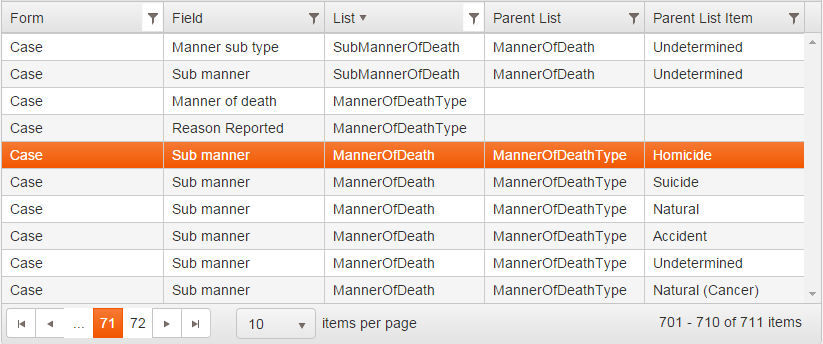
Some drop down will load a list only after some other drop down has an item selected, these are cascading lists. These lists have a value, other than blank, in the Parent List column.
The value in the Parent column is the name of the list on which the list depends and the value in the Parent List Item column is the item that has to be selected in the parent list to load the current one.
For example, in the following image, the selected row shows that the MannerOfDeath list depends on the MannerOfDeathType selection
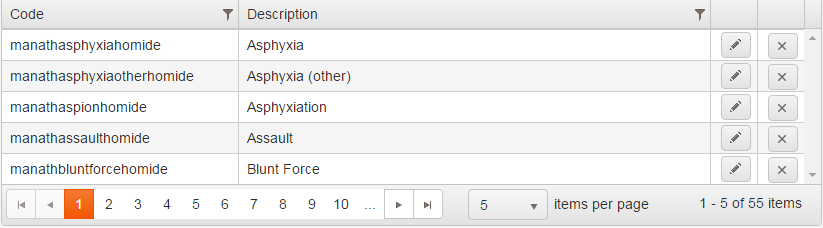
The next image shows the items in the MannerOfDeath list when in the MannerOfDeathType list Homicide is selected